
HERE'S YOUR GUIDE TO KICK START YOUR MASHORE METHOD ACCOUNT!
These are the step-by-step guide on how to do the basic integrations to make your account fully-functional!
Don't forget to download our 7 effective checklist
STEP 1: Integrate your Google, GMB, FB & IG, FB PAGE, FB ADS ACCT, FB ADS MAPPING
Integrate your Google Account that has your Google my business account.
Connect your Facebook and Instagram to this will help you integrate or your fb ads page, social posting, ads form, ig and fb messages.
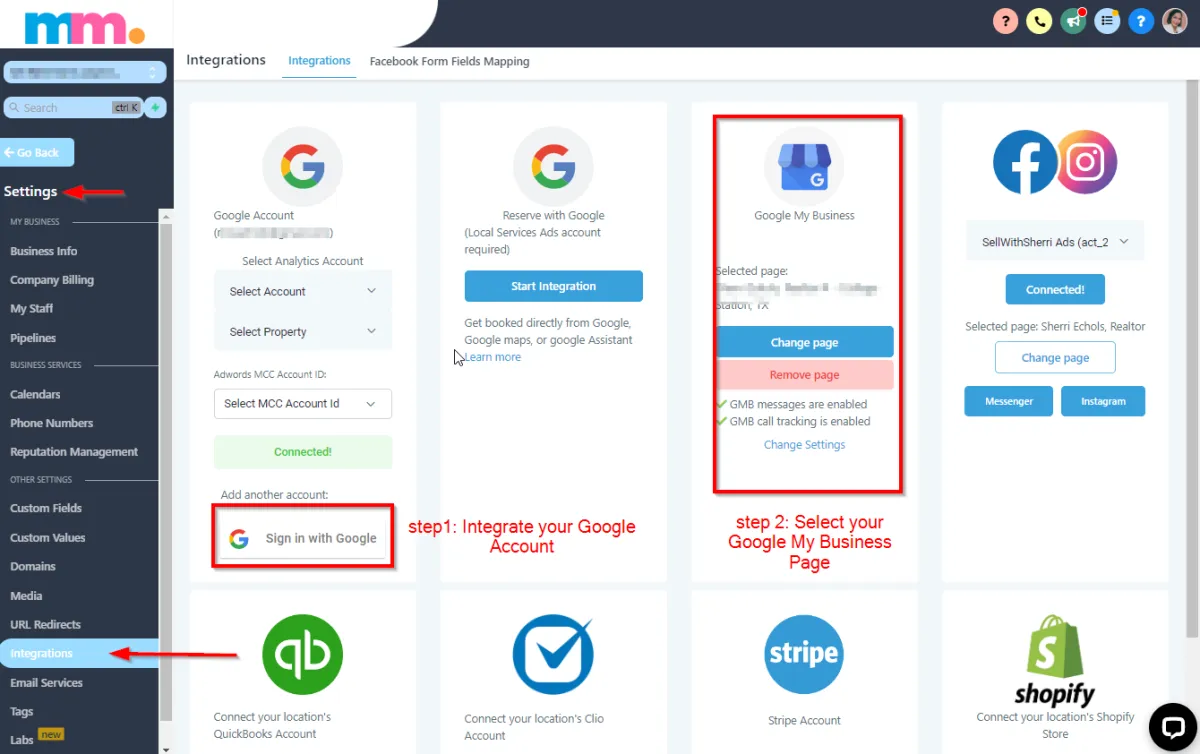
FB & IG INTEGRATION
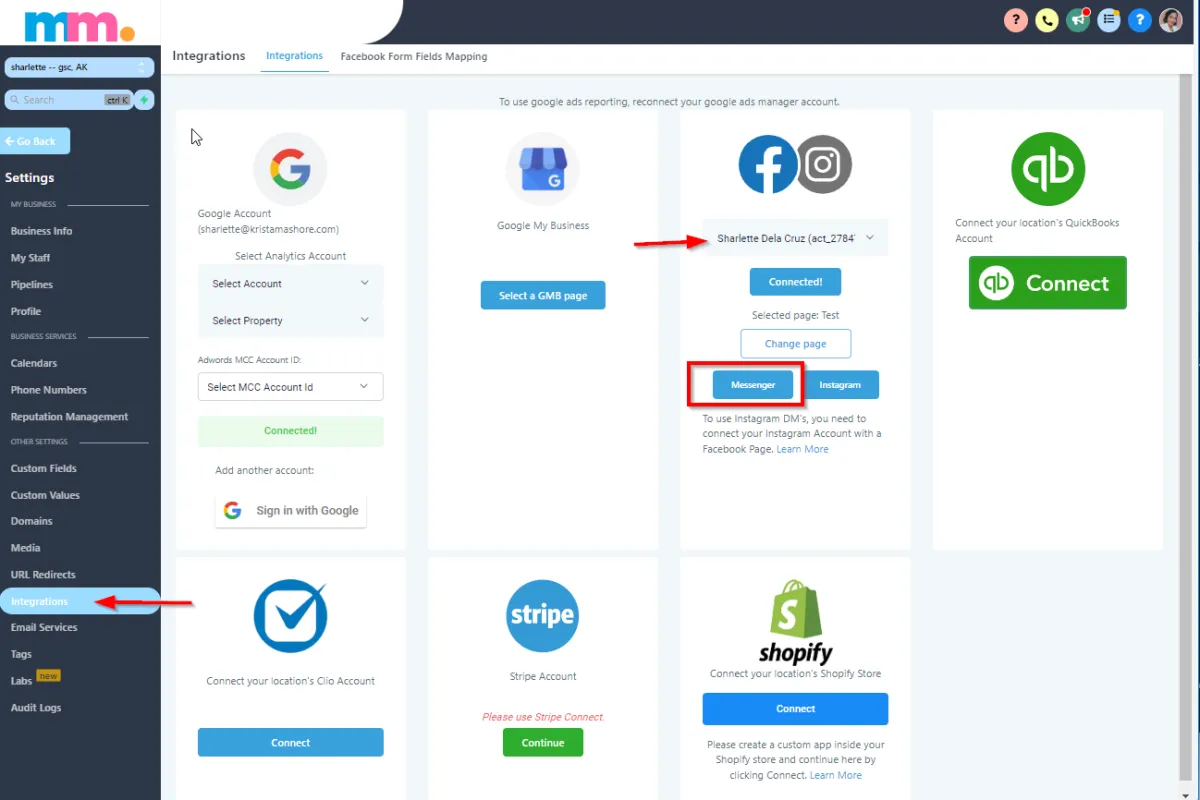
FACEBOOK FORM FIELDS MAPPING
After FB & IG Integration you'll be able to sync your facebook forms coming from your facebooks Ads that has a form.
Make sure that Questions from Facebook form are also added to the Mashore Method Custom Fields. The system will auto sync the fields from FB Ads Form to Mashore Method. This will enable you to get all the information of the FB Ads Lead.
How to add a custom field in Mashore Method?
Go to Settings > custom fields > Click the Green Button and selection custom fields options > hit save > Go back to the facebook form fields mapping under Settings > Facebook Form Fields Mapping and look for the custom field you made, then hit the save button
STEP 2: Add your Own Mashore Method Phone Number
To connect with your leads and existing clients via SMS and outgoing calls, add a mashore method phone number.
Go to your Settings > Phone Number > Select your Country > Area Code > Select your phone number of choice. You may add a forwarding phone number to forward incoming calls coming from your mashore method phone number.
This will allow you to make calls and SMS in App.
Also, make sure that you have downloaded the mashore method app on you mobile device.
Search The Mashore Method in your apple store or playstore for android users.
Charges vary within countries.
Text Messages: $0.0142/segment or $10 credit will give you about 705 segments.
Charge for making calls: $0.0247/min of $10 credit will give you about 405 calls
Charge for Receiving calls: $ 0.0162 / min of for every $10 credit will give about 615 calls
STEP 3: ADD YOUR EMAIL SERVICE PROVIDER
By using Mashore Methods mail we can ensure that your email marketing campaigns will go to your leads/customer's inbox and not on spam. This will help you improve your email deliverability.
Mashore Method email domain is the solution you need to ensure that your email will land in the inboxes.
Our email deliverability is at 95-98% whereas, having your own Mailgun account where you have to pay a monthly subscription and warming up your IP Address will take some time.
If you have your own Mailgun account, we can definitely help you integrate your Mailgun account to your Mashore Method account via 1:1 Support Call.
If you wish to add different Email Service Provider (Office 365,Google, GoDaddy, Google business) you can do so by clicking the Green button on the top right corner button: +Add Service
Charges for Mashore Method subdomain
Here's the Breakdown for Mashore Method Email Subscription:
$0.00133/email or $10= 7520 emails
Note: Make sure that your email service domain and your account's company email are the same. Please Read Email Deliverability in your help library to know more about email best practices to avoid your marketing emails going into spam or promotional tab.

CHANGING YOUR PASSWORD
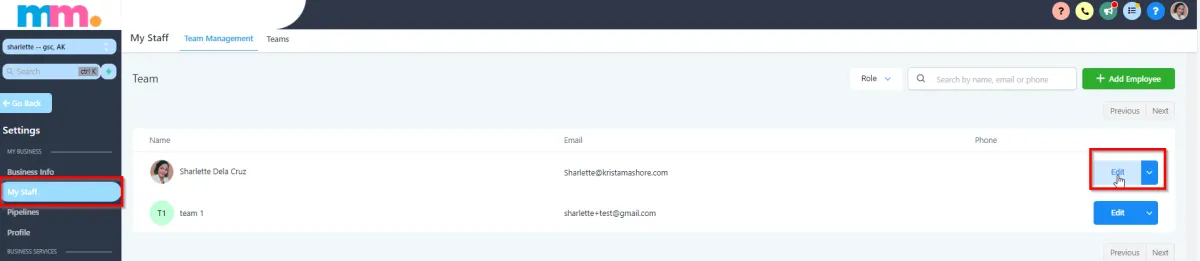
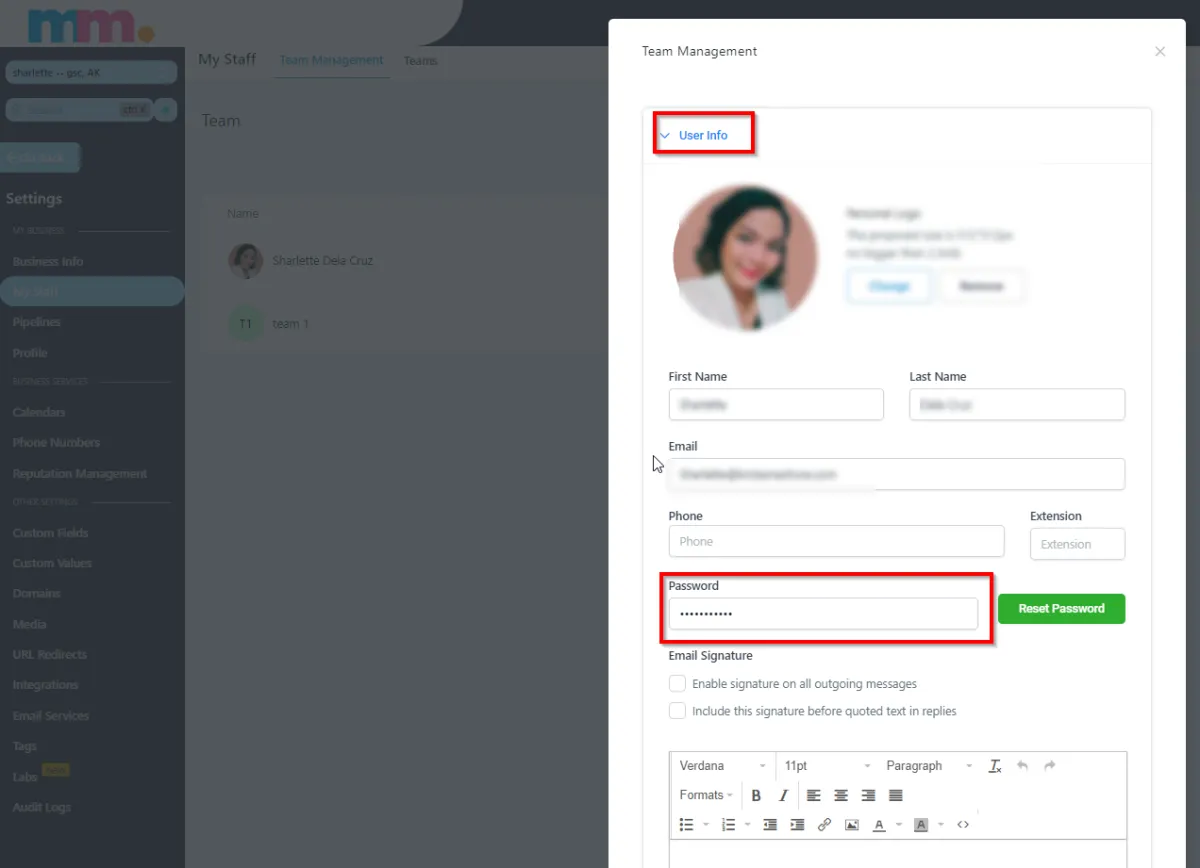
Change your password by going to Settings > My Staff > Select Edit > Change the Password and hit the Save button located at the bottom right.
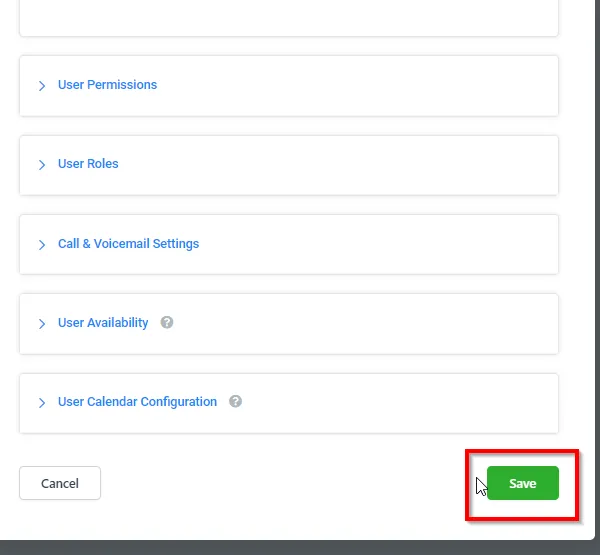
STEP 4: ADD YOUR DOMAIN AND SUBDOMAIN
Once your funnel or website design and automation are complete, you can book a 1:1 Support Call or Join Office Hours to help you integrate your domain. This will help turn your Mashore Method funnels/websites live.
Domain Providers can be: GoDaddy,Google domain, namecheap and more..
Best if you have a domain not yet used for any website, but
If you have an existing website and you wanted to use the same domain (yourdomain.com)
We encourage you to use a subdomain. It's a domain that is part of a primary domain. You can get as many subdomain as you want.
Ex. of subdomain is www
Ex: you can get marketplace.yourdomain.com and more!
To set up:
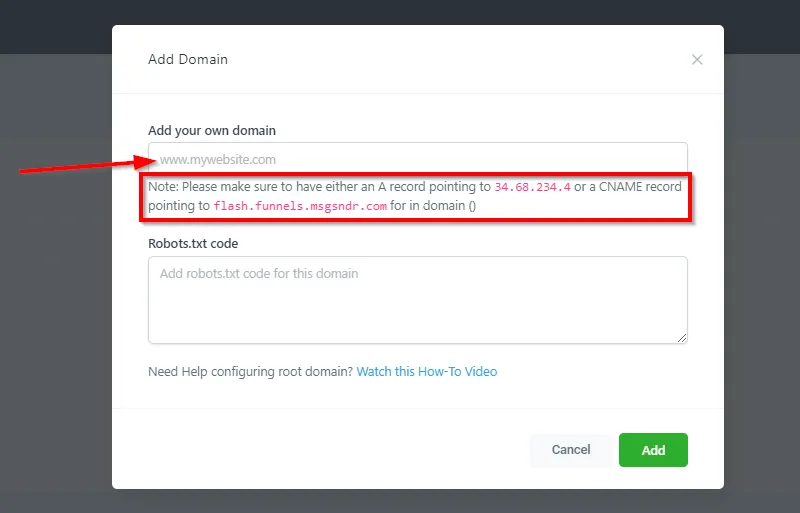
Domain and DNS Provider site > Click your domain > select Manage DNS
Remove Parked A record for the new purchase domain.
Go to your mashore method Settings > Domains
Watch the video below
BONUS!
How to Import your existing contacts and how to create a Smartlist
To ensure your contacts are organized and contain the best data. This will help you run your business more efficiently and effectively too.
NOTE:
If you are not an Admin User for your account, you will not be able to import/export contacts. Your User Settings can be changed by the Admin User (usually the person who signed up for/set up the account) in Settings > My Staff > Team Management.
What You'll Need:
Step 1:
Prepare your .csv file (Excel or Google Sheet)
a. CSV File with the contacts you want to import
b. Ensure that Row 1 of the file has all of your necessary headers such as ‘first name’, ‘last name’, ‘email’, ‘phone’, ‘tag’, etc.
Map Fields:
A green check mark on the left indicates the field is mapped and ready to import.
“Column Header From File” shows you which .csv column is being imported
“Preview Information” shows you what information was found in the .csv file
“Contact Fields” shows what CRM contact record field the information will populate into. This is usually automatic for general fields such as first name, last name, email, phone, etc.
How to Create a Smartlist
Smart Lists are a great way to organize contacts, by customizing filters to create 'lists' or categories of contacts.
For more information about Smartlist please check out The Help Library
All the Support You Need to Grow Your Business.
RIGHT HERE

Schedule Onboarding Session

Get 1-on-1 Support

Join Free Office Hours

Download the
Onboarding Checklist

Access the Video
Training Library